Summary
How to test Performance of the Solidigm client SSD series.
Many factors can affect performance results. Provided below are a few factors to check.
- BIOS optimization:
- Enable “Hyper Threating” & Intel® “Turbo Mode”;
- Disable “EIST (Enhanced Intel® Speed Step Technology)”, “PCIe ASPM (Active State Power Management)”, “C States” & “P States"
- OS (Windows® 10/11) Optimization:
- Disable all Virus & Firewall protections;
- Disable Screen Saver & Sleep;
- Turn on DEP for essential Windows programs and services only;
- No paging file;
- Disable "Scheduled drive Defragment/Optimization";
- Disable Windows* Updates and all schedules tasks;
- Power option Optimization:
- Choose “High performance” power plan in Power option;
- Disable “PCI Express link power management”;
- Change “Turn off Hard Drive after” to “0 minute (Never);
- Set “Minimal/Maximum Processor State” to 100% both.
- Drive Optimization:
- Confirm the drive is using the optimal connection;
- Drives under test should be connected to the system as a secondary (non OS) drive;
- Make sure the latest Firmware and driver are installed;
- Run secure erase (Important Note: Always back up data regularly and before proceeding as this process removes all data from the drive.)
- Download & install Solidigm Storage Tool™ and select “Secure Erase” if it’s a NVMe Solidigm client SSD;
- Use some third-party tool like HDAT2* & KillDisk* to perform secure erase on a SATA Solidigm client SSD;
- Run “Performance Booster”;
- Install correct and latest benchmark application to test performance, here using CrystalDiskMark 8.0.4” as sample, which could be found on https://crystalmark.info/
- Choose correct SSD type under “Setting” menu;
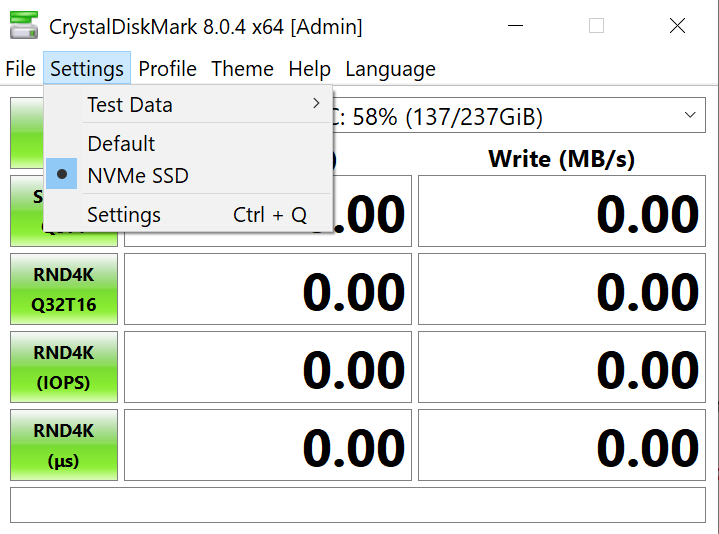
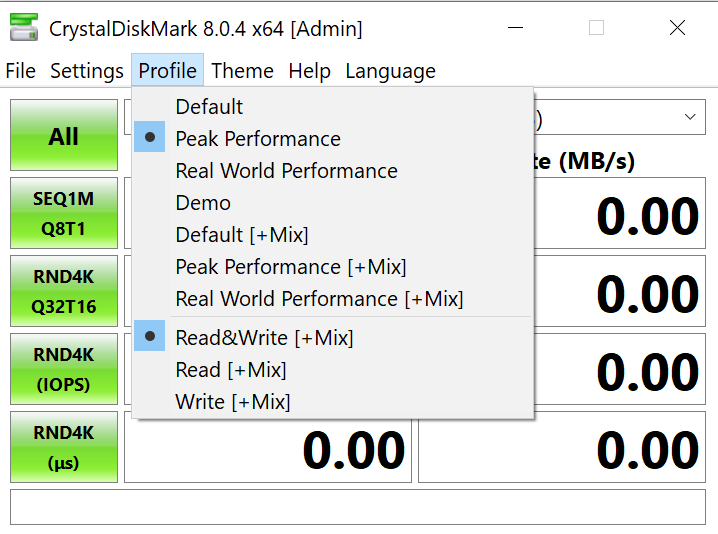
2. Choose “Peak Performance” in “Profile” menu.
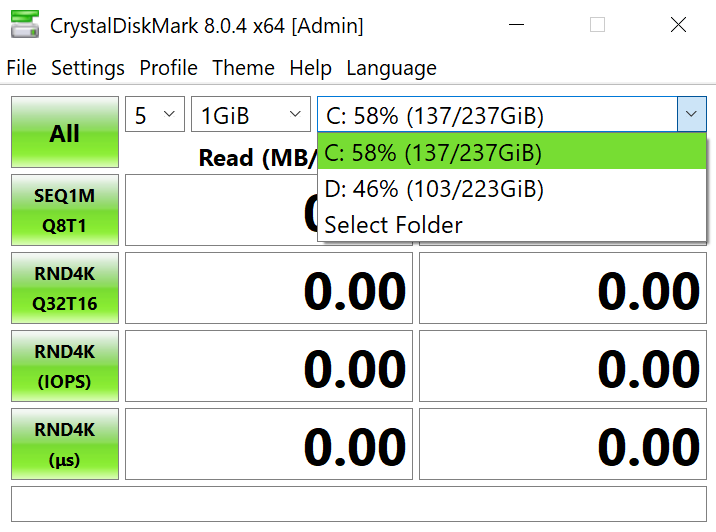
3. Select the partition/drive needs to be tested.
4. Save the results in a text file. This will show the MB/s and the corresponding IOPS results.
Additional information
If this did not resolve the issue, contact Solidigm Customer Support and provide the following details:
-
- Details about the issue being experienced and what you have already tried.
- System details.
Questions? Check out our Community Forum for help.
Issues? Contact Solidigm Customer Support:
[Chinese] [English] [German] [Japanese] [Korean]